
Why Brook exists and where continuous care is heading.
Download PDF Guide
Download PDF Guide
Download PDF Guide
Using your RPM PRO Scale with Brook
Using your RPM PRO Scale with Brook
Using your RPM PRO Scale with Brook

Remove scale from box. Pull plastic tab from battery pack. Place scale on a hard, flat surface.
Step one
1
Step on the scale. Stand still and keep feet in full contact; the results will blink twice and then lock as the final result.
Step two
2


Step three
3
Step off the scale after it blinks twice.
The scale will display “OK” to indicate that the data transmission was successful.
Step four
4
Remove scale from box. Pull plastic tab from battery pack. Place scale on a hard, flat surface.
Step one
1
Step on the scale. Stand still and keep feet in full contact; the results will blink twice and then lock as the final result.
Step two
2
Step three
3
Step off the scale after it blinks twice.
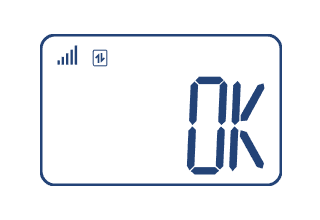
The scale will display “OK” to indicate that the data transmission was successful.
Step four
4
That’s it! This glucose meter uses a cellular connection to Brook Remote Care, so you can use it right away and your results will automatically be logged for your clinic.
Important Notes:
Remove your shoes and excess clothing before stepping on the scale.
Check your weight at the same time each day, and hold still during measurement.
Keep the scale in the same location and make sure it’s on a hard, flat surface. Do not store scale upright.
If the scale is moved or stored upright and the readings fluctuate, try stepping on the scale a second time – this should re-calibrate the scale.
Since data is automatically logged, the scale should only be used by the person on Brook.
Weights can be viewed in the Brook app’s profile section.
Scale limit is 400 pounds.
Brook
155 108th Ave NE
Suite 350
Bellevue, WA 98004
Connect with Brook








Brook
155 108th Ave NE
Suite 350
Bellevue, WA 98004
Connect with Brook
Brook
155 108th Ave NE
Suite 350
Bellevue, WA 98004
Connect with Brook
Remove scale from box. Pull plastic tab from battery pack. Place scale on a hard, flat surface.
Step one
1
Step on the scale. Stand still and keep feet in full contact; the results will blink twice and then lock as the final result.
Step two
2
Step three
3
Step off the scale after it blinks twice.
The scale will display “OK” to indicate that the data transmission was successful.
Step four
4
That’s it! This glucose meter uses a cellular connection to Brook Remote Care, so you can use it right away and your results will automatically be logged for your clinic.
Important Notes:
Remove your shoes and excess clothing before stepping on the scale.
Check your weight at the same time each day, and hold still during measurement.
Keep the scale in the same location and make sure it’s on a hard, flat surface. Do not store scale upright.
If the scale is moved or stored upright and the readings fluctuate, try stepping on the scale a second time – this should re-calibrate the scale.
Since data is automatically logged, the scale should only be used by the person on Brook.
Weights can be viewed in the Brook app’s profile section.
Scale limit is 400 pounds.
That’s it! This glucose meter uses a cellular connection to Brook Remote Care, so you can use it right away and your results will automatically be logged for your clinic.
Important Notes:
Remove your shoes and excess clothing before stepping on the scale.
Check your weight at the same time each day, and hold still during measurement.
Keep the scale in the same location and make sure it’s on a hard, flat surface. Do not store scale upright.
If the scale is moved or stored upright and the readings fluctuate, try stepping on the scale a second time – this should re-calibrate the scale.
Since data is automatically logged, the scale should only be used by the person on Brook.
Weights can be viewed in the Brook app’s profile section.
Scale limit is 400 pounds.